Ballot Settings
Before you can begin building your ballot form, you must first configure your Ballot Settings. This essential step allows you to define the rules, permissions, and visibility settings for your ballot. This guide walks you through each setting, explaining its purpose and offering best practices to help you make the most of your upcoming vote.
Required Fields
Fields marked with an asterisk (*) are mandatory and must be completed before proceeding.
Title & Description
1. Form Name*
The Form Name appears at the top of the ballot and in the ballot listing page. It gives voters a quick understanding of the ballot’s purpose.

Best Practices:
Keep it short and clear.
Use concise wording that reflects the ballot’s intent.
For recurring events (e.g., annual elections), include the relevant year.
2. Description
This section is displayed above the ballot and on the ballot listing page. It provides a summary of the ballot’s purpose and basic instructions (this is not where the ballot itself is built. See Ballot Builder for that).
A brief overview of the voting process.
Simple, easy-to-follow guidance for voters.
Legal or overly technical language.
Detailed instructions better placed elsewhere in the app.
Ballot content such as candidate names, motion text, or voting options. This should be added in the Ballot Builder area, not in the description field, to avoid confusion.
Voter Permissions & Access
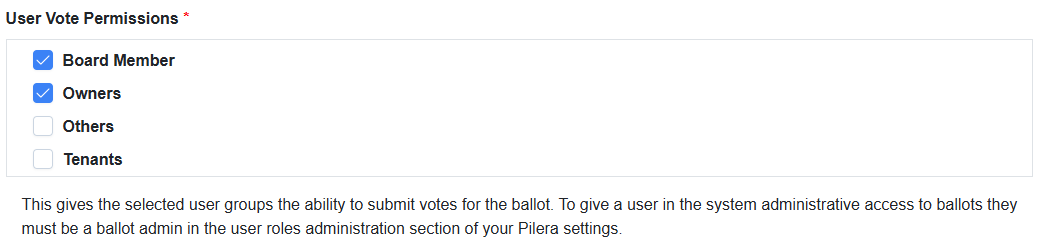 User Vote Permissions
Specify who in your organization can vote on this ballot.
Important Note:Form Restrictions
Enabled: Only one vote per unit is accepted.
Disabled: No limit on how many votes an individual can submit. This is ideal for informal polls or surveys where collecting multiple responses per unit is acceptable or encouraged.
Secret Ballots

Two separate, un-linkable data sets are maintained to ensure privacy; the platform never links the voter’s identity to their selections. This method allows votes to remain confidential while still maintaining the accuracy of results.
