Ballot List Page
The Ballot List page provides a centralized location to view all your created ballots. From here, you can manage settings, make edits, monitor participation, and access ballot results.
1. Selecting a Community
Use the Community dropdown at the top of the page to select the specific community whose ballots you’d like to view. Only ballots associated with the selected community will be displayed.
2. Filtering by Ballot State
You can filter ballots based on their current state to focus only on what’s relevant:
Active: Displays ballots that are currently open and running.
Inactive: Shows ballots that have ended or are not currently in use—ideal for reviewing past performance.
Archived: Lists ballots you’ve archived for record-keeping.
 Note:
Note:3. Ballot Management Action
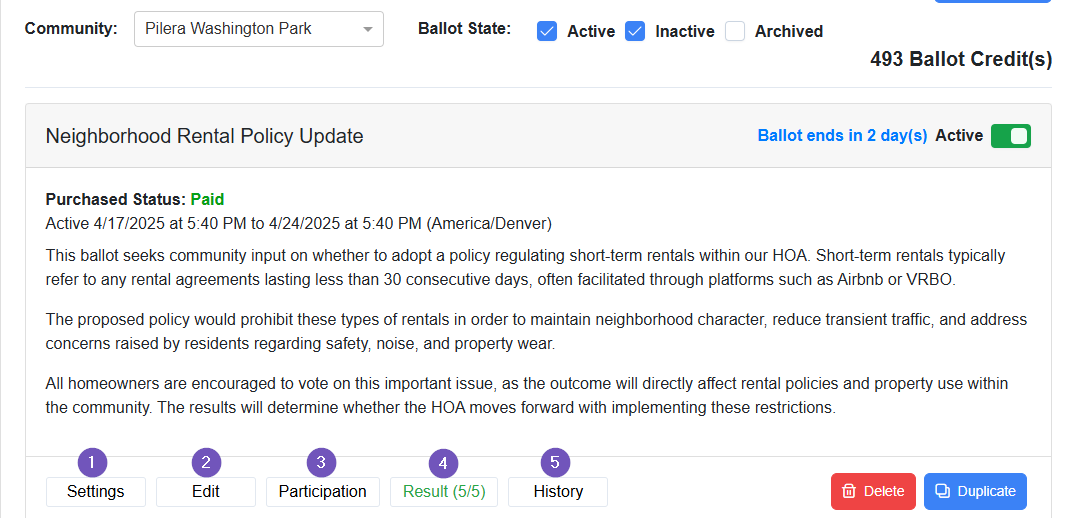
1. Settings
Clicking on Settings will take you back to the Ballot Settings page. Here, you can update configuration details or archive the ballot.
2. Edit
Select Edit to return to the Ballot Builder, where you can modify ballot questions or add additional components.
3. Participants
Click Participants to view the full voter base, including who has voted, who hasn’t, and overall participation rates.
4. Results
Select Result to go to the Results page, where you can see the outcome of voting exercise. See Ballot Results Page for more details.
5. History
The History section shows a full log of result-related activity, including:
- Who unsealed the ballot.
- The exact date and time of unsealing.
- All other users who accessed the results and when.
- Any result deleted by an admin.